
Managing product variants
Add size, color, or other options to your products.
Edit your product
Go to Products in the sidebar and click on the product you want to add variants to. You can add variants to both new and existing products. Variants are useful when a product comes in different sizes, colors, or materials.
Add options
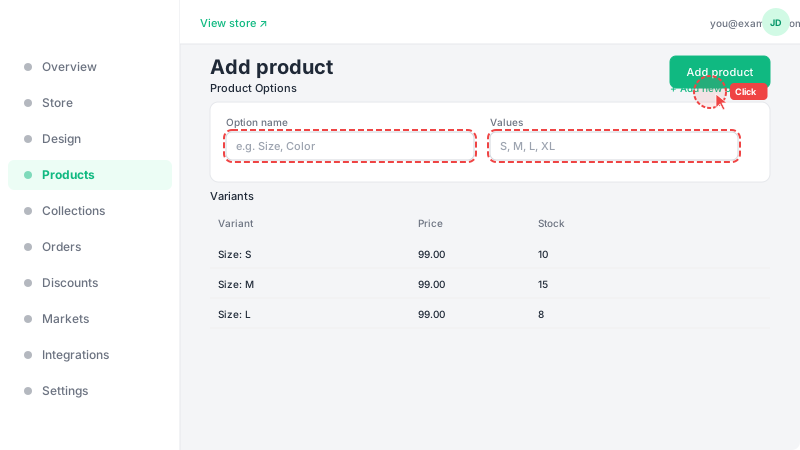
Scroll down to the Options section and click "Add Option". Give your option a name (e.g., "Size", "Color", "Material") and enter the available values separated by pressing Enter (e.g., S, M, L, XL). You can add multiple option types — for example, both Size and Color. The system will automatically generate all possible combinations.
Set variant prices and stock
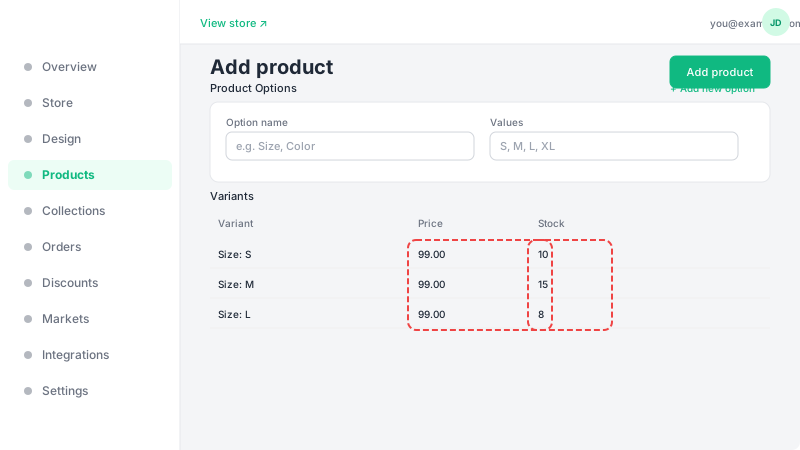
Each variant combination gets its own row in the variants table below the options. You can set a different price and stock quantity for each variant. For example, an XL shirt might cost more than an S. If you leave a variant's price empty, it will use the product's base price. Remember to click "Save" when you're done editing variants.