

Adding a new product
Create a product with images, pricing, and details.
Go to Products
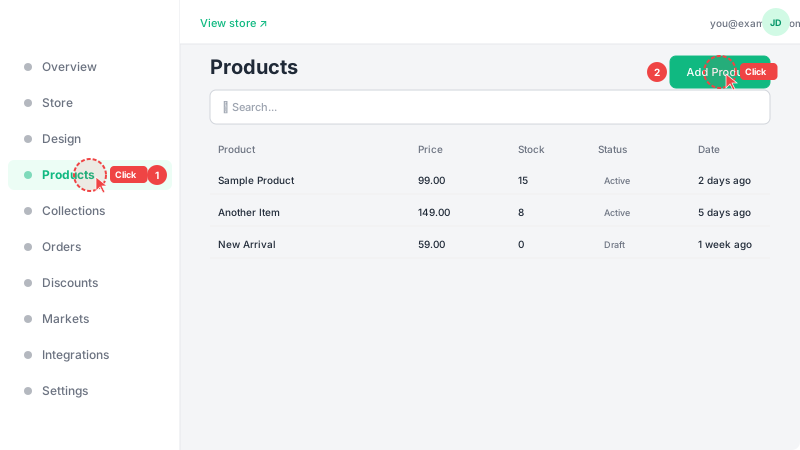
Click "Products" in the sidebar to see your product list, then click the "Add Product" button in the top-right corner. If this is your first product, the page will be empty — that's normal.
Fill in product details
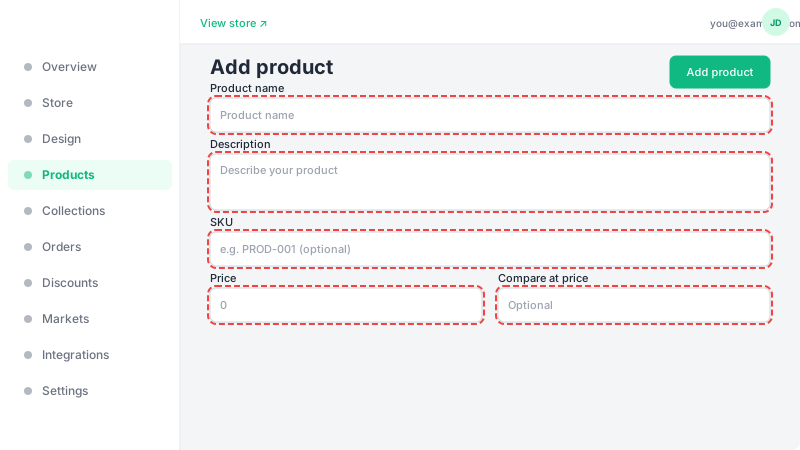
Enter the product name and a description that helps customers understand what they're buying. Add an optional SKU for your own tracking. Set the selling price, and optionally a "compare-at" price (the original price before discount — it will be shown crossed out next to the actual price). Toggle stock tracking on and set the quantity if you want to track inventory.
Upload images
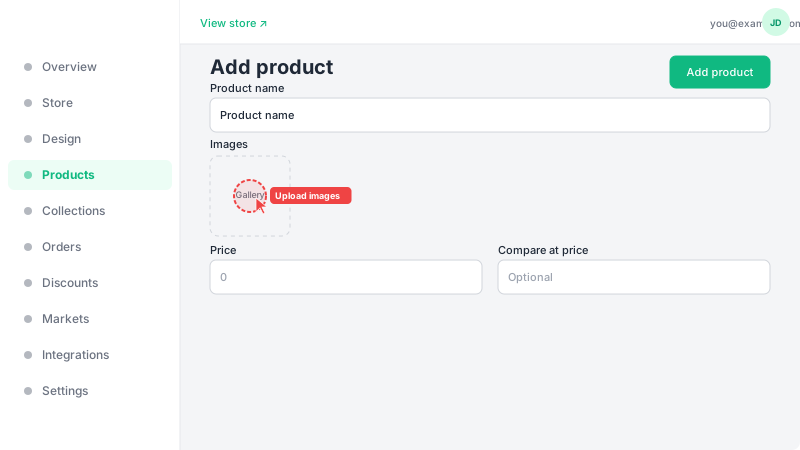
Drag and drop images onto the upload area, or click it to browse your files. You can upload multiple images — the first one will be used as the main product image that customers see when browsing your store. Use high-quality, well-lit photos for the best results. Recommended size is at least 800x800 pixels.
Save the product
Click "Create Product" to save your new product. It will appear on your storefront once your store is published. You can edit the product anytime by clicking on it from the Products list. Products are set to active by default — toggle the status off if you want to hide a product temporarily.