Managing store settings
Update your store name, URL slug, and currency.
1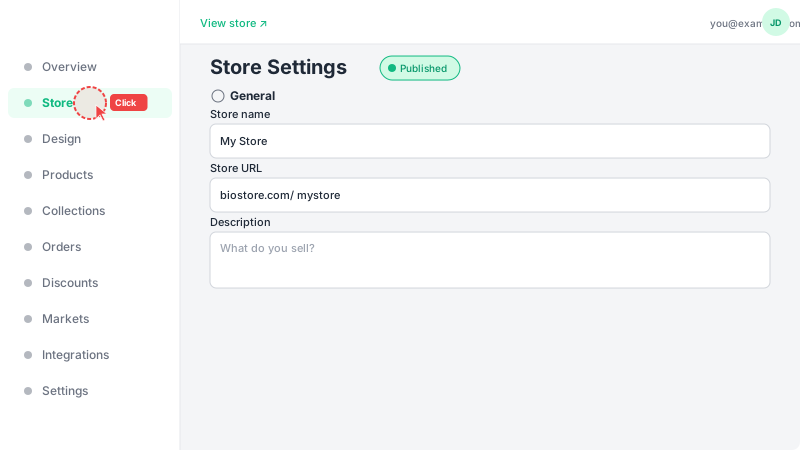
Open Store page
Click "Store" in the sidebar to access all store settings. This page is your central hub for managing how your store appears to customers — including its name, branding, and contact details.
2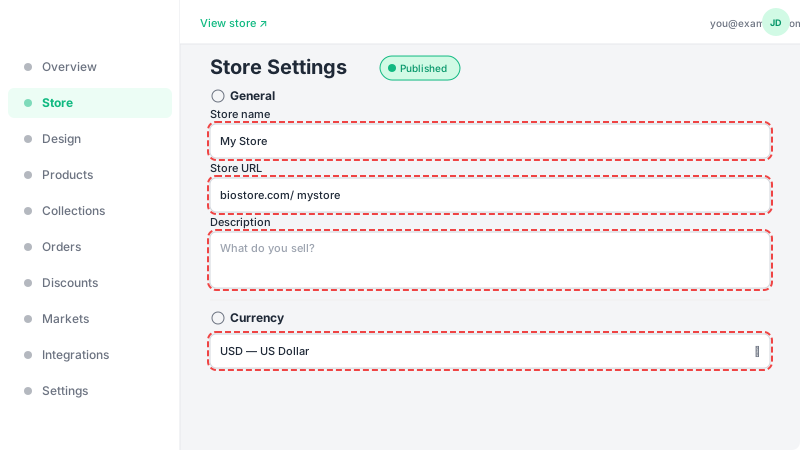
Edit your information
Here you can update: Store name (displayed in the header and browser tab), URL slug (the unique link to your store), and currency (used for all product prices). The custom domain section below lets you connect your own domain. For visual customization like logos, colors, and fonts, head to the Design page. Click "Update Store" after making changes.
Frequently Asked Questions
Will changing my store slug break existing links?
Yes, changing your URL slug will update your store's link. Any previously shared links using the old slug will stop working. Make sure to update your links on social media and marketing materials after changing the slug.
Can I upload a store logo?
Yes, you can upload a store logo and banner from the Design page. Go to Design in the sidebar and look for the Branding section where you can upload your logo and customize your store's visual identity.