

Setting market-specific prices
Configure custom prices for products in a fixed-pricing market.
1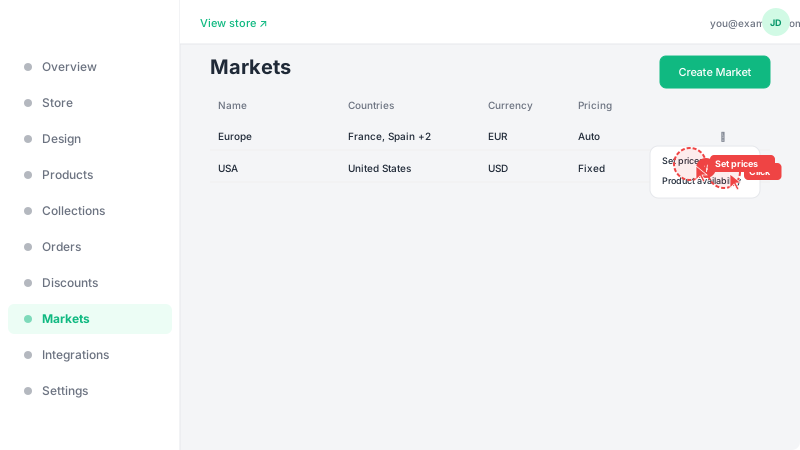
Open the pricing editor
From the Markets list, find the market you want to set prices for (must be a "Fixed" pricing mode market). Click the ⋯ menu on the right side of the market row and select "Set prices". This opens the pricing editor where you can see all your products and their current prices.
2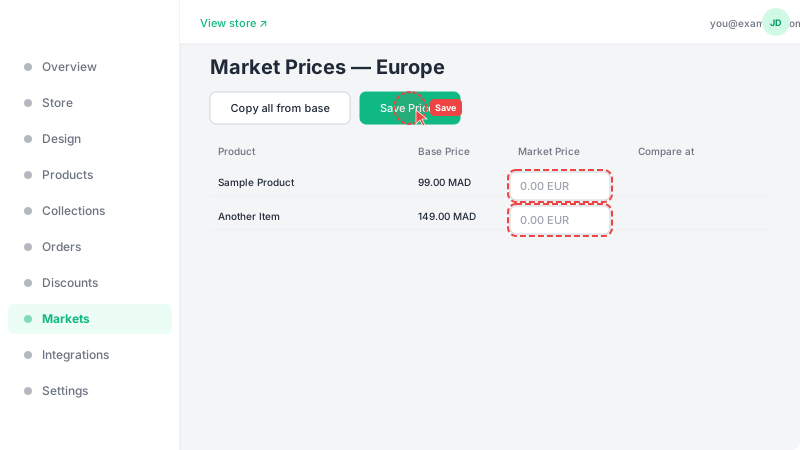
Set prices per product
Enter the market-specific price for each product in the local currency. You can also set a "compare-at" price (the original/strikethrough price) for showing discounts. To save time, click "Copy all from base" to populate all fields with your default store prices as a starting point, then adjust as needed. Products without a market price set won't appear in this market. Click "Save" when done.
Frequently Asked Questions
What happens to products without a market price?
In a fixed-pricing market, products without a market-specific price set will not appear on the storefront for customers in that market. Make sure to set prices for all products you want visible.
Can I copy prices from my base currency as a starting point?
Yes, click "Copy all from base" in the pricing editor to populate all fields with your default store prices. You can then adjust individual prices as needed before saving.