Creating a new market
Set up a market for a specific region with its own currency.
Go to Markets
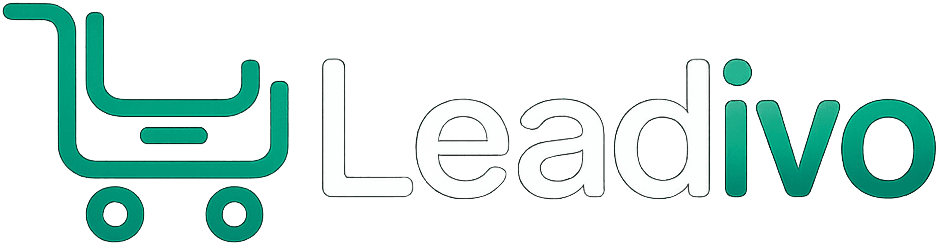
Click "Markets" in the sidebar to see your existing markets, then click "Create Market". Markets allow you to sell to customers in different countries with their own currency and pricing. For example, you could have a "North Africa" market in DZD and a "Europe" market in EUR.
Configure market details
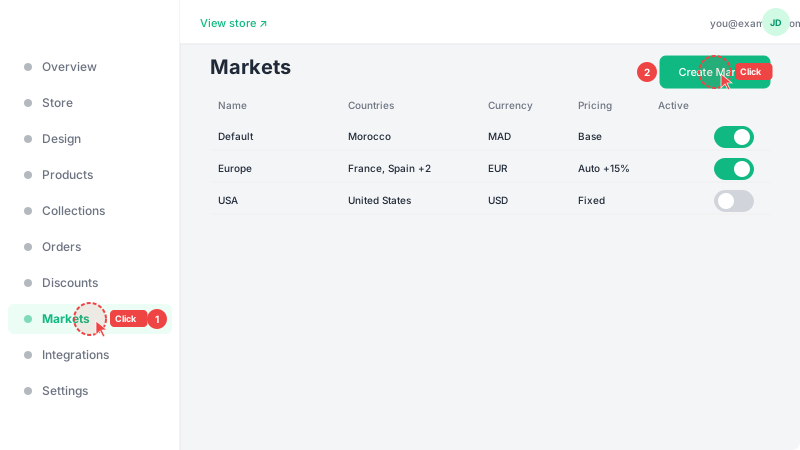
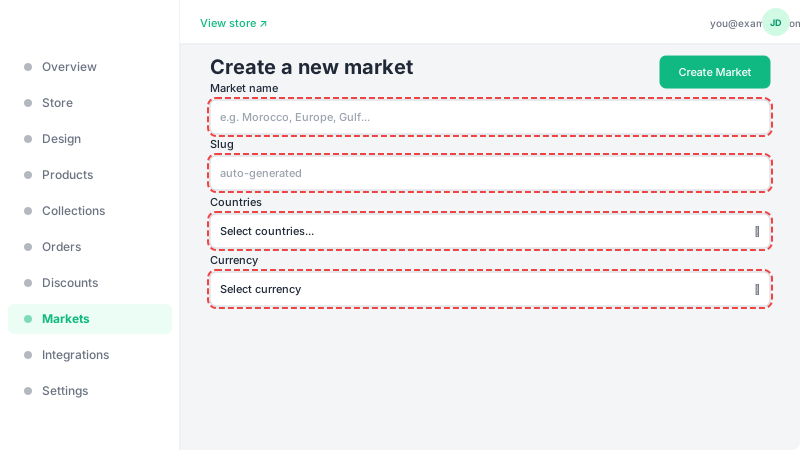
Enter a descriptive name (e.g., "Europe", "Gulf Countries"), then select which countries belong to this market. Choose the currency customers will see prices in. Finally, pick a pricing mode: "Auto" automatically converts your base prices using a percentage adjustment you set (e.g., +10%), while "Fixed" lets you manually set a specific price for each product in this market's currency. Auto is simpler to manage, but Fixed gives you full control.
Save and activate
Click "Create Market" to save your new market. Then toggle the market to active so customers from those countries can see localized prices. If you chose "Fixed" pricing mode, you'll need to set individual product prices — click the ⋯ menu on the market and select "Set prices". Customers are automatically matched to their market based on their IP location — prices appear in the right currency from the first page load, with no manual switching needed. Customers from countries not assigned to any market will see a "Coming your way soon" page.