
Help CenterGetting StartedSetting up your store

Setting up your store

Configure your store name, currency, and description.

1

Navigate to Store settings

From the dashboard sidebar on the left, click "Store" to open your store settings page. This is where you configure all the basic information about your store that customers will see.
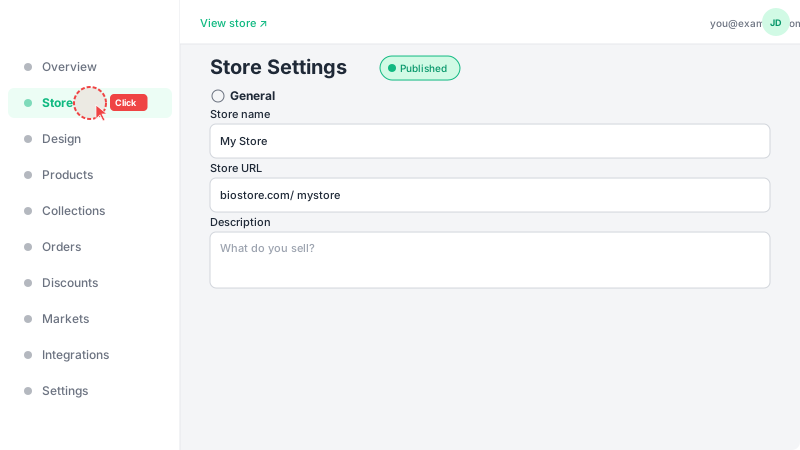
Navigate to Store settings
2

Fill in store details

Enter your store name (this appears in the header of your storefront). Choose a URL slug — this is the unique link customers will use to visit your store (e.g., leadivo.app/your-slug). Select your primary currency for product pricing. These are the core settings that define your store.
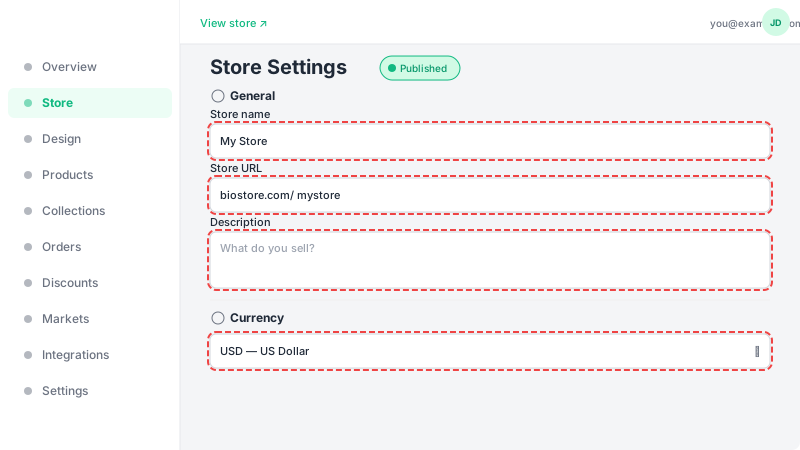
Fill in store details
3

Save your settings

Click "Create Store" to save your settings. Your store is now configured and ready — the next step is adding your first products. You can always come back to this page to update your store details later using the "Update Store" button.
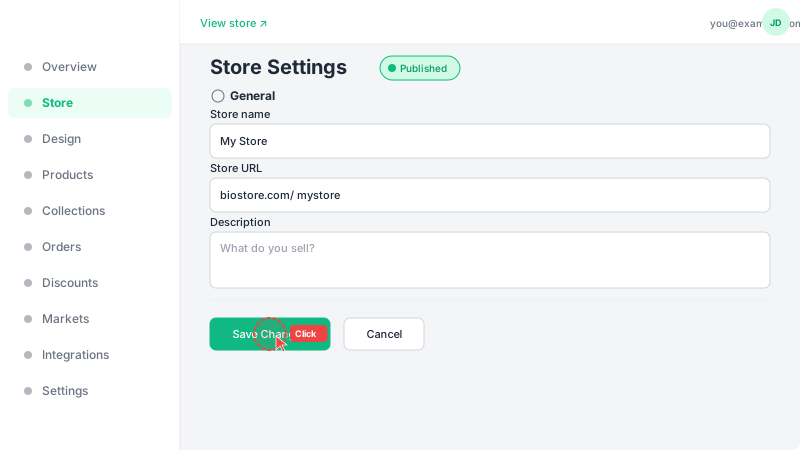
Save your settings

Frequently Asked Questions

Can I change my store name after creating it?
Yes, you can update your store name, slug, currency, language, and description at any time from the Store settings page. Changes are applied immediately after saving.
What currencies are supported?
Leadivo supports a wide range of currencies including USD, EUR, GBP, DZD, MAD, TND, SAR, AED, EGP, and many more. You can also set up multiple markets to sell in different currencies simultaneously.
What languages can my storefront display?
Your storefront supports 20 languages including English, Arabic (with RTL support), French, Spanish, Portuguese, German, Italian, Dutch, Turkish, Russian, Chinese, Japanese, Korean, Hindi, Indonesian, Malay, Polish, Swedish, Thai, and Vietnamese.