
City-level delivery rates
Override delivery fees for specific cities or exclude cities from delivery.
Expand a shipping zone
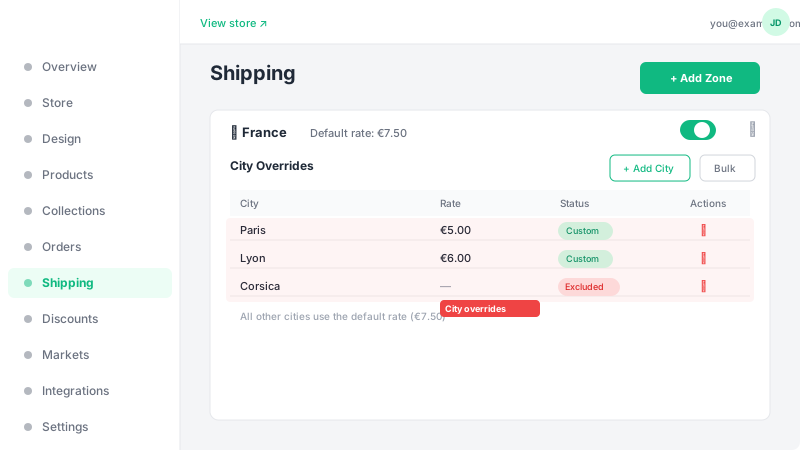
Click on any shipping zone to expand it and see its city-level overrides. By default, all cities in a zone use the zone's default rate. You can add individual city overrides to charge different rates or block delivery to specific cities.
Add a city override
Click "Add City" and type the city name. Enter a custom delivery rate for that city. This rate will be used instead of the zone's default rate when a customer enters this city at checkout. City names are matched case-insensitively, so "new york" and "New York" will both match.
Exclude a city from delivery
When adding a city, check the "Exclude" option instead of entering a rate. This lets you control your delivery coverage precisely — excluded cities will display a clear message at checkout, so customers always know your service area upfront.
Bulk add cities
To add many cities at once, use the bulk add feature. Enter one city name per line and set a rate or exclusion that applies to all of them. This saves time when setting up delivery for a country with many cities.
Import cities from CSV
For countries with many cities and different rates per city, use the CSV import feature. Click "Import CSV" inside a zone, then upload a CSV file with three columns: City, Rate, and Excluded. Each city can have its own rate, or be marked as excluded (use "yes" in the Excluded column). You can download a template file to get the correct format. After uploading, you'll see a preview of all cities before confirming the import. Existing cities are updated automatically, new ones are added.
How customers see delivery fees
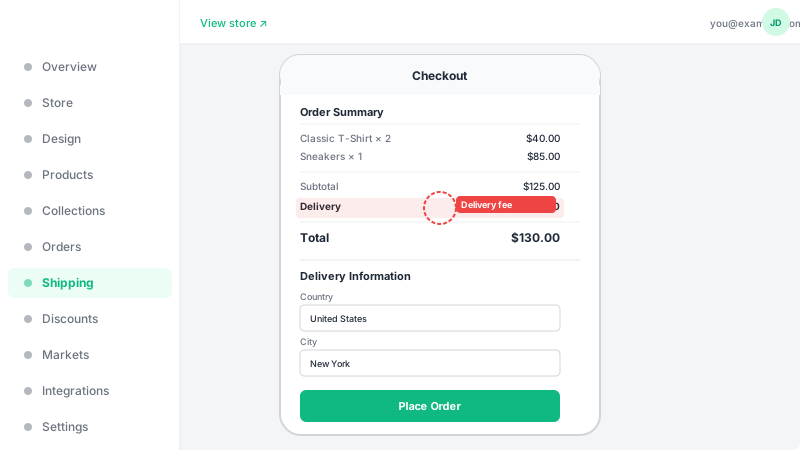
At checkout, after the customer enters their country and city, the delivery fee is automatically calculated and shown in the order summary. If the store uses multi-market pricing, the delivery fee is converted to the market's currency at the same exchange rate as product prices. The fee is included in the order total and verified server-side when the order is placed.