

Help CenterIntegrationsConnecting Google Sheets

Connecting Google Sheets

Automatically export orders to a Google Spreadsheet.

1

Install Google Sheets integration

Go to Integrations and find the "Google Sheets" card under Productivity. Click "Install" to add it to your store, then click "Setup" to configure the connection. This integration automatically adds a new row to your Google Spreadsheet every time a customer places an order — so you always have an up-to-date record of all your orders.
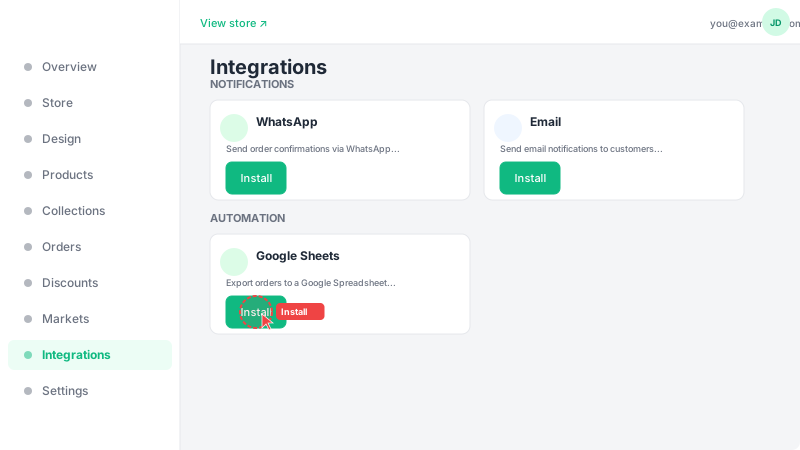
Install Google Sheets integration
2

Connect your Google account

Click "Connect Google Account" and sign in with the Google account where you want the spreadsheet to be created. After authorizing access, you can choose which order fields to include in your spreadsheet (e.g., customer name, phone, items, total, address, status). A new spreadsheet will be automatically created in your Google Drive. Each new order will appear as a new row with the fields you selected.
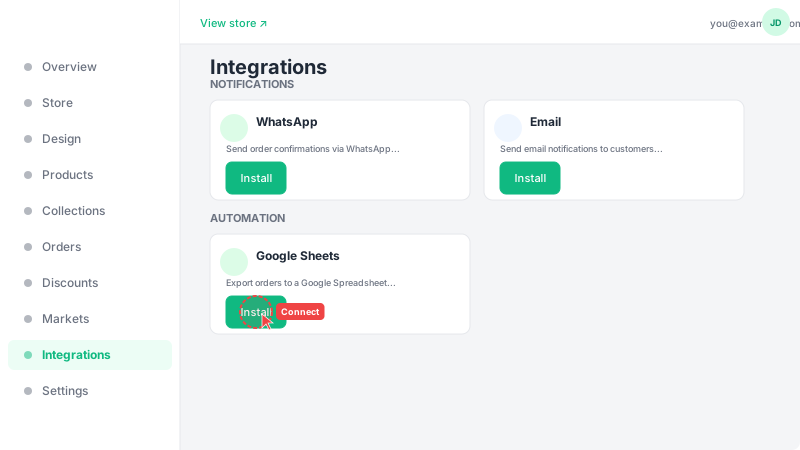
Connect your Google account

Frequently Asked Questions

What order fields can I export to Google Sheets?
You can choose from 20+ fields including: order number, customer name, email, phone, address, city, country, total, currency, items, status, date, payment method, delivery fee, discount amount, subtotal, and more. You select which fields to include during setup.
Does Google Sheets also track abandoned checkouts?
Yes, abandoned checkouts are also logged to your Google Spreadsheet when the Google Sheets integration is enabled. This gives you a complete record of both completed orders and abandoned carts.
Can I manually sync existing orders?
Yes, use the "Sync" button in the Google Sheets integration settings to manually sync all your existing orders to the spreadsheet at any time.