Help CenterDiscountsCreating a discount code

Creating a discount code

Set up promotional discount codes for your customers.

1

Go to Discounts

Click "Discounts" in the sidebar to see your existing discount codes, then click "Create Discount" to make a new one. Discount codes are a great way to attract new customers, reward loyal ones, or run promotional campaigns on social media.
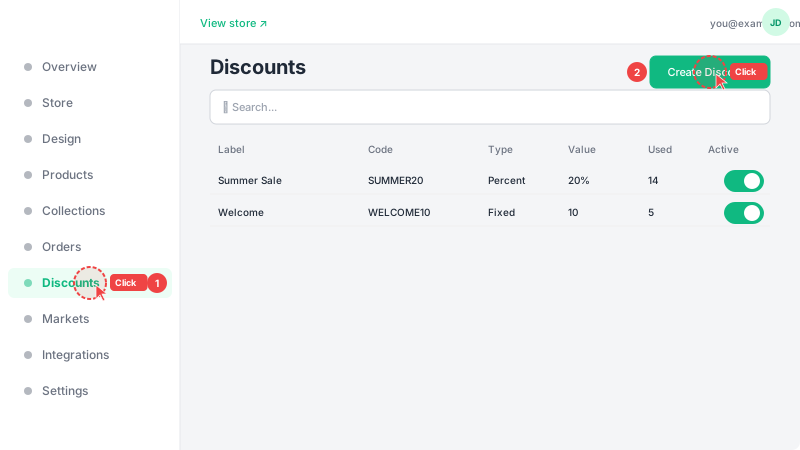
Go to Discounts
2

Configure the discount

Enter a memorable code that customers will type at checkout (e.g., SUMMER20, WELCOME10). Choose the discount type: "Percentage" takes a percentage off the total (e.g., 20% off), while "Fixed amount" subtracts a specific value (e.g., $5 off). Set the discount value, and optionally configure: a minimum order amount (the discount only applies if the cart total reaches this amount), and a usage limit (how many times the code can be used before it expires). Click "Create" to save the discount.
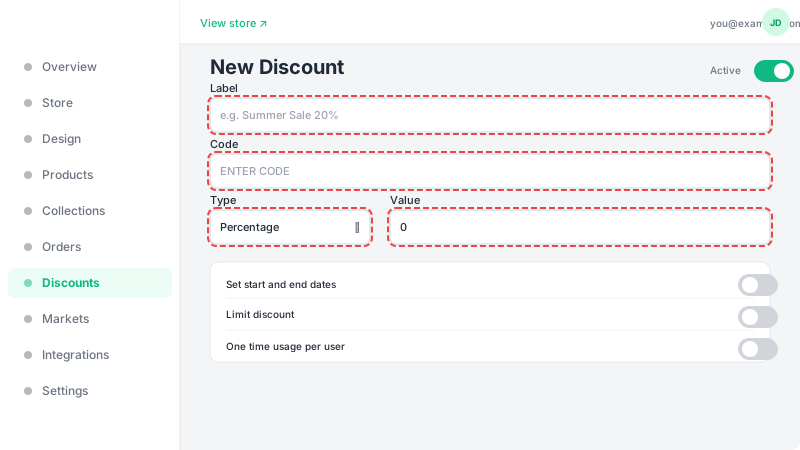
Configure the discount

Frequently Asked Questions

Can I limit a discount to specific markets?
Yes, when creating a discount you can select which markets it applies to. If no markets are selected, the discount applies to all markets. This lets you run region-specific promotions.
Can I set an expiration date for a discount?
Yes, you can set both a start date and an end date for any discount. The discount will only be valid during that time period. You can also set a maximum usage limit for additional control.
What happens if a customer tries to use an expired or maxed-out discount?
The system validates discount codes in real-time at checkout and provides clear feedback to customers. It checks expiration dates, usage limits, and minimum order requirements automatically, keeping the checkout experience smooth and transparent.