
Viewing and managing orders
Track and manage incoming customer orders.
Open Orders page
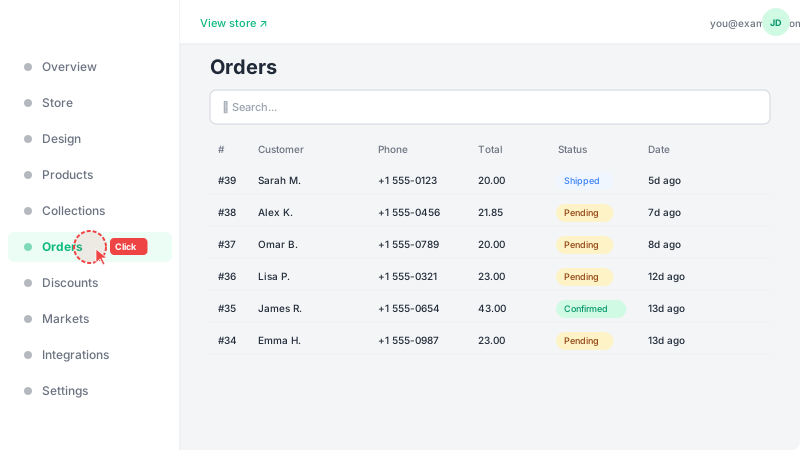
Click "Orders" in the sidebar to see all customer orders. They're sorted by most recent first. Each order shows the customer name, total amount, status, and date. You can also see a quick count of new (pending) orders that need your attention.
View order details
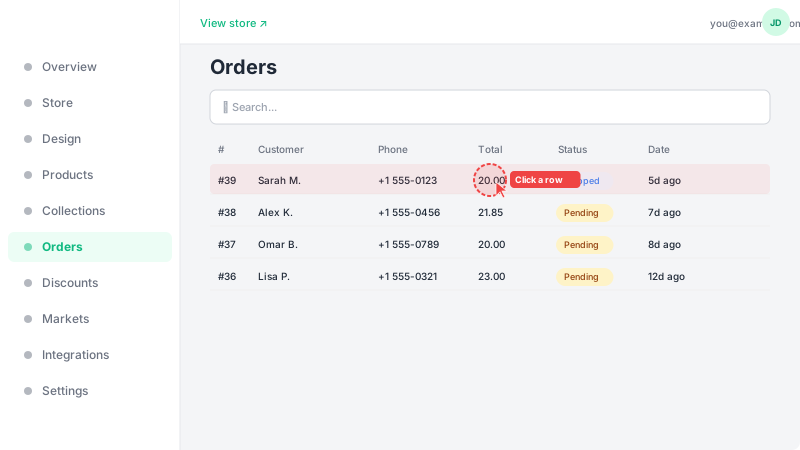
Click any order row to open the full details. You'll see everything about the order: the customer's name, phone number, and shipping address; a list of all items ordered with quantities and prices; the payment method and total amount; and any discount codes applied. This is all the information you need to fulfill the order.
Update order status
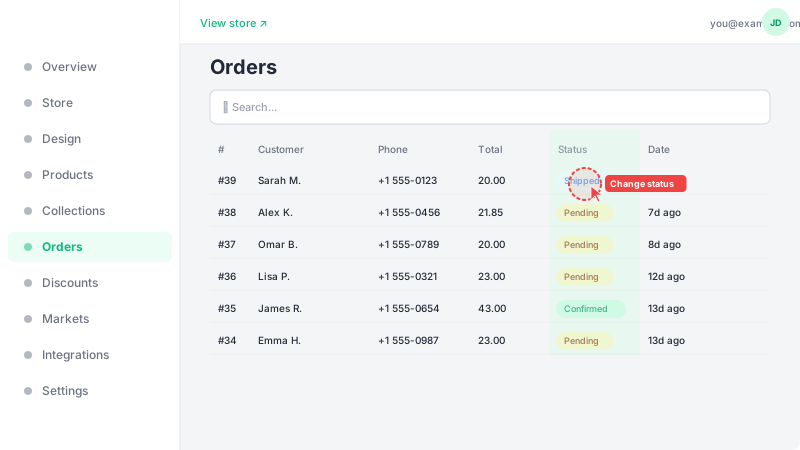
Use the status dropdown on the order detail page to track your fulfillment progress. The available statuses are: Pending (new order, not yet processed), Confirmed (you've accepted and are preparing the order), Shipped (the order is on its way to the customer), Delivered (the customer has received their order), Returned (the customer sent the order back), and Canceled (the order was canceled). The system guides you through the correct workflow by showing only valid status transitions at each step. You can also select multiple orders using the checkboxes and use bulk actions to update their status at once. Updating statuses helps you stay organized, feeds the COD analytics dashboard, and keeps customers informed if WhatsApp notifications are enabled.