Setting up shipping zones
Create shipping zones with default delivery rates for each country.
Open the Shipping page
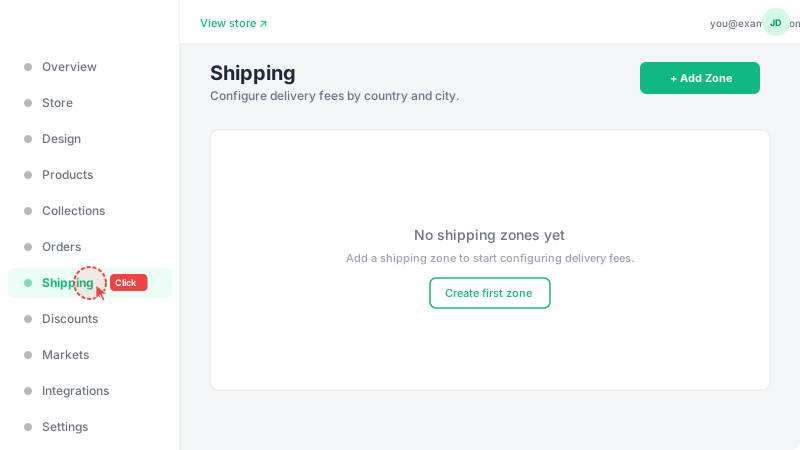
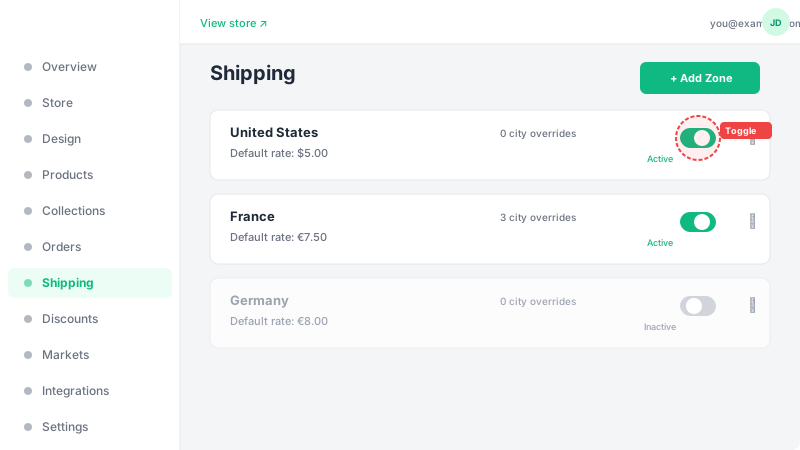
Click "Shipping" in the dashboard sidebar. This page lists all your shipping zones — one per country. If you haven't created any zones yet, you'll see an empty state with a button to add your first zone.
Add a shipping zone
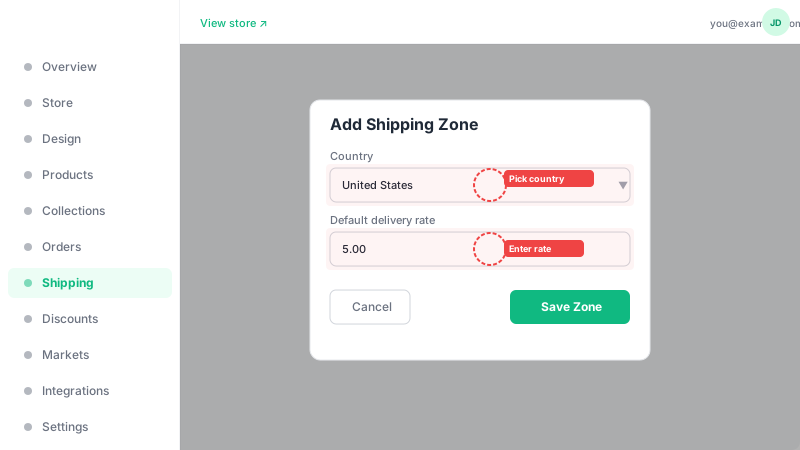
Click "Add Zone" and select a country from the dropdown. Enter the default delivery rate — this is the fee charged to customers in that country unless overridden at the city level. Click save to create the zone.
Toggle zone active or inactive
Each zone has an active toggle. When a zone is inactive, customers from that country won't see any delivery fee and the zone is ignored at checkout. This is useful for temporarily pausing delivery to a country without deleting the zone and its city overrides.
Edit or delete zones
You can update the default rate of any zone at any time. To remove a zone entirely, click the delete button — this will also remove all city-level overrides for that zone. If you set a zone's default rate to 0, customers in that country will see "Free delivery" at checkout.