Connect COD Network Fulfillment
Push orders to COD Network automatically and sync delivery status back to your dashboard.
Install COD Network from Integrations
Go to Dashboard → Integrations. Find the COD Network card under the Shipping category and click Install. COD Network is a MENA-focused cash-on-delivery fulfillment platform with a built-in call center that confirms orders by phone before shipping — helping you reduce failed deliveries and fraud.
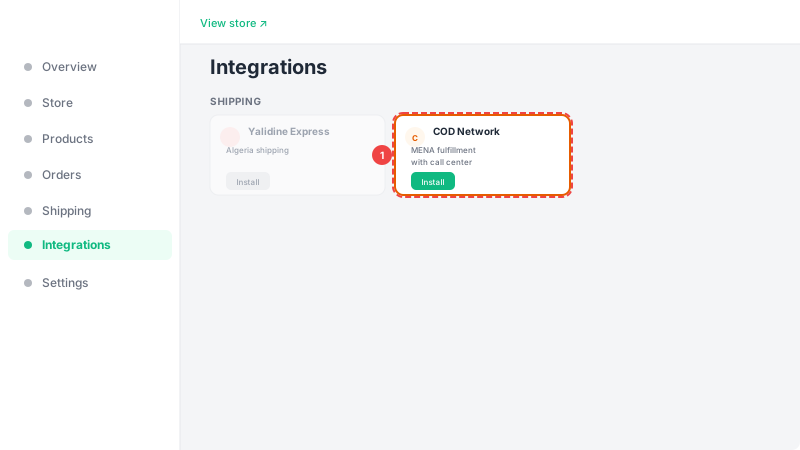
Enter your API token and choose your mode
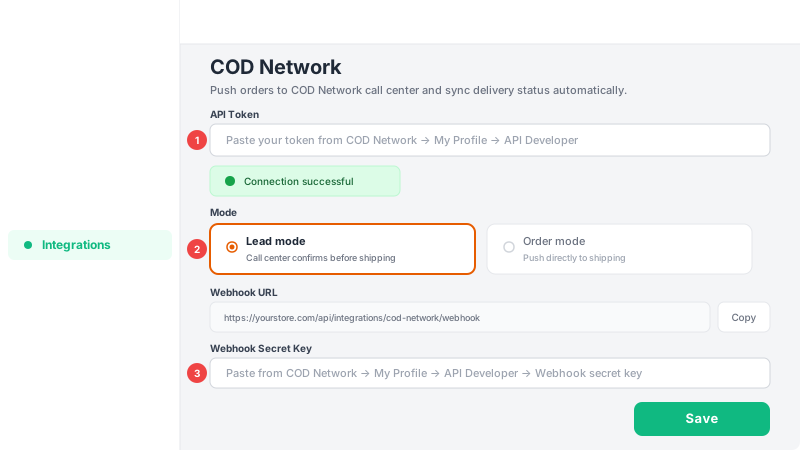
Click Setup to open the configuration panel. Paste your API Token from COD Network (My Profile → API Developer → API Token). Click Test Connection to verify your credentials. Then choose your mode: Lead mode sends orders to the call center queue for phone confirmation before shipping — recommended for most sellers to reduce fake orders — or Order mode pushes orders directly to shipping without a confirmation call. That's all — every new order is pushed automatically.
Orders are pushed and status syncs back automatically
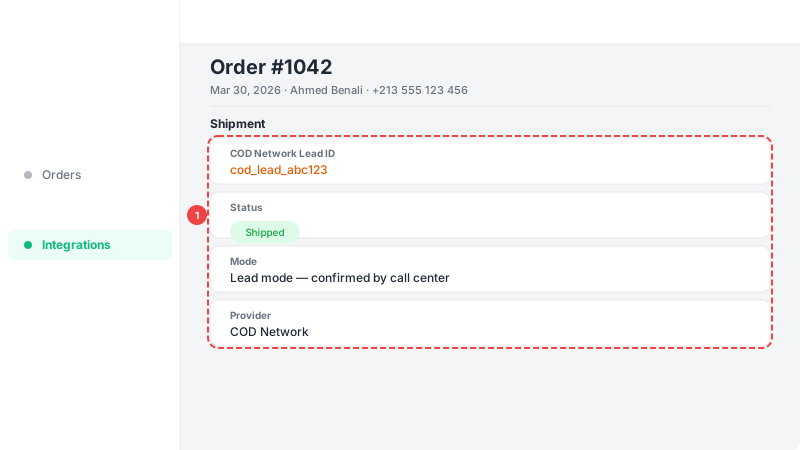
Every new order is automatically pushed to COD Network as a lead or order — no manual action needed. COD Network sends real-time status updates back to Leadivo via webhook, so your order status updates automatically as orders are confirmed, shipped, delivered, or returned. You can see the COD Network reference ID on each order's detail page. Important: make sure your product SKUs in Leadivo match the SKUs in your COD Network product catalog.
Import your COD Network products (optional)
Already have a product catalog in COD Network? From the COD Network settings page, click Import Products. Leadivo fetches your full catalog from COD Network, you select which products to bring over, and they are added to your Leadivo store with their name, SKU, price, and stock. Products whose SKU already exists in your store are skipped automatically to avoid duplicates. This is a one-time migration tool — great for sellers switching from another system.