Publishing your store
Make your store live and accessible to customers.
1
Go to Store settings
Open the Store page from the dashboard sidebar. Make sure you have already added at least one product and configured your store details before publishing.
2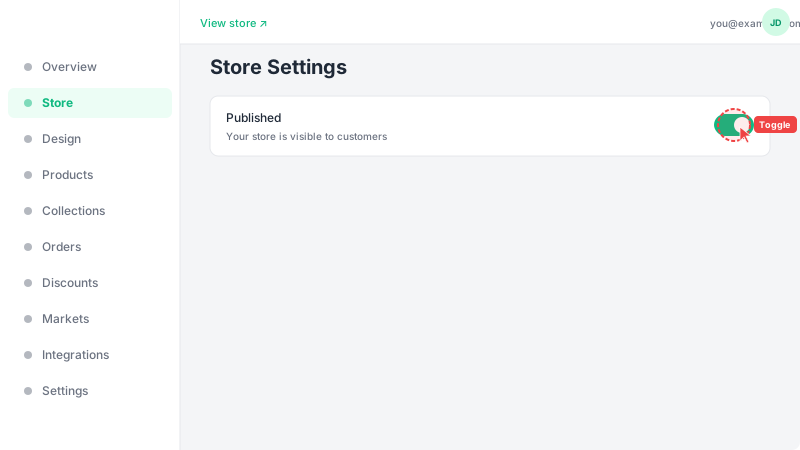
Set your store to Published
At the top of the Store page, next to the page title, you'll see a status dropdown. Click it and change it from "Draft" to "Published". Your store will immediately become visible to anyone with the link. You can share your store URL with customers via social media, WhatsApp, or any other channel. You can switch back to "Draft" at any time to hide your store.
Frequently Asked Questions
Can customers see my store before I publish it?
No. While your store is unpublished, visiting its URL will show a "Store not found" page. Only after you toggle the Published switch will your store be accessible to customers.
Can I unpublish my store temporarily?
Yes, you can toggle the Published switch off at any time. This will hide your store from customers without deleting any of your data, products, or orders. Turn it back on whenever you're ready.