
Customizing your store theme
Change the overall look and feel of your storefront.
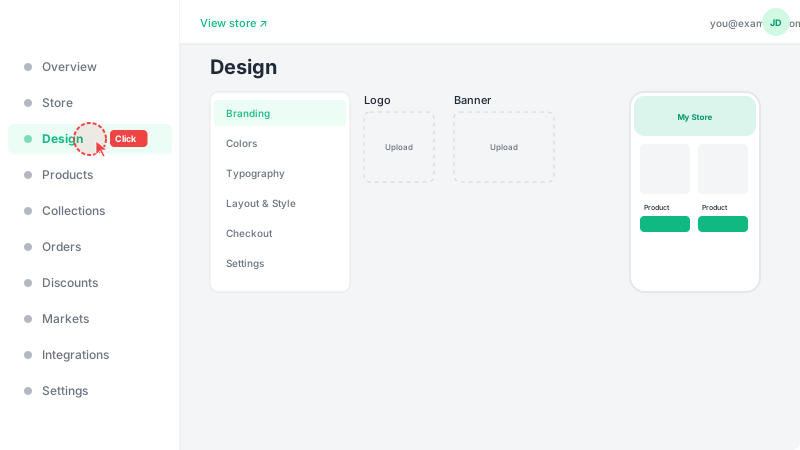
Open the Design page
Click "Design" in the sidebar to open the theme editor. This is where you control how your storefront looks to customers — colors, fonts, and overall visual style.
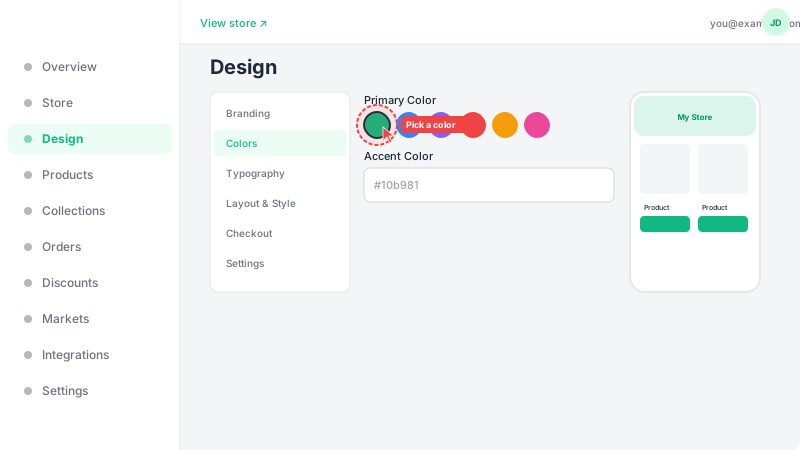
Choose your colors
Pick a primary accent color that matches your brand. This color will be applied across your entire storefront — buttons, links, badges, and highlighted elements. Choose a color that contrasts well with white backgrounds for the best readability. You can click the color picker or enter a hex code directly.
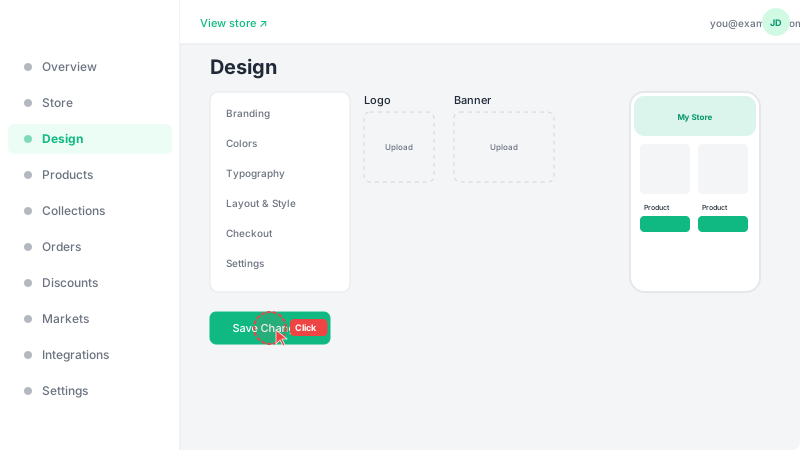
Preview and save
Your changes are previewed in real-time as you make them, so you can see exactly how your store will look before saving. Once you're happy with the design, click "Save" to apply the changes to your live store. Customers will see the updated design immediately.