

Creating a collection
Group your products into browsable collections.
Go to Collections
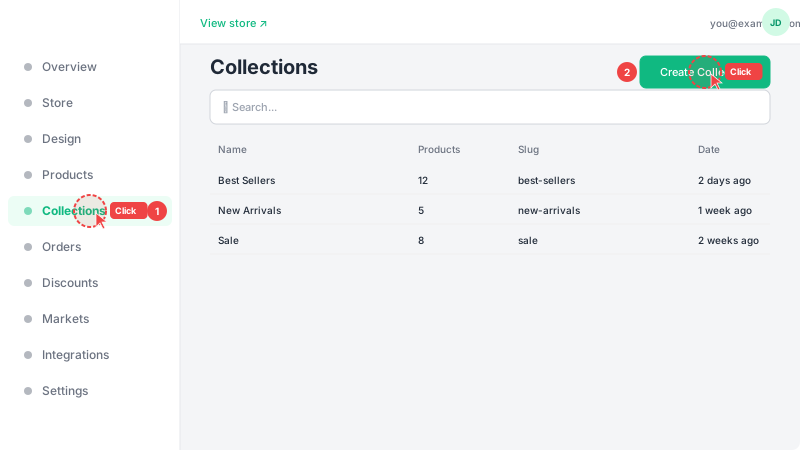
Click "Collections" in the sidebar to see your existing collections, then click "Create Collection" to add a new one. Collections help customers browse your store by category — for example, "New Arrivals", "Best Sellers", or "Summer Collection".
Name your collection
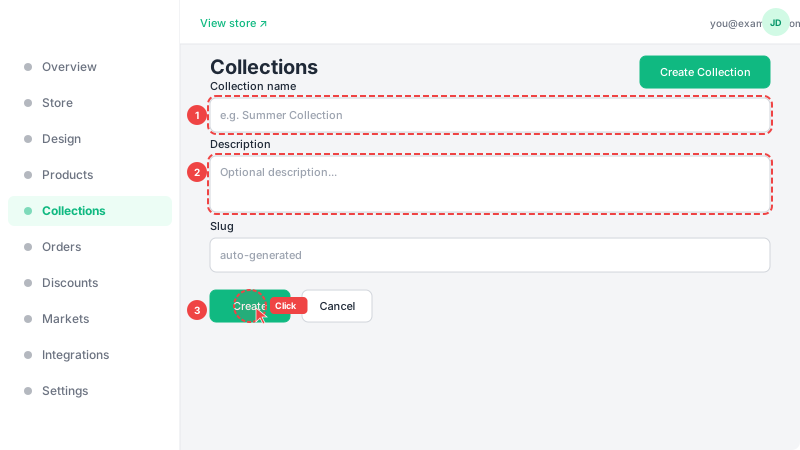
Enter a clear name for your collection (e.g., "New Arrivals", "Summer 2025"). The URL slug is auto-generated from the name — it's what appears in the link when customers visit this collection (e.g., /collections/summer-2025). Then select which products belong to this collection using the product checkboxes below the name field.
Assign products
To add products to this collection, go to the Products page and edit any product. In the product form, you'll find a "Collection" dropdown — select this collection to include the product. A product can only belong to one collection at a time. Collections with products will automatically appear on your storefront's navigation.